Once a lab has more than one Docker host, the routine starts to drag: SSH into one box to check a container, SSH into another to pull an image, repeat. Dockhand is a self-hosted Docker web UI, and Hawser is its small companion agent. Together they put every host behind one browser tab. This post runs the Dockhand server against its local Docker socket, puts an agent on a second host, registers that agent from the UI, then creates a container on the remote host from the GUI and confirms it with docker ps. It builds on post #2 of the series, which covers TLS certificates for Docker.
Step 1: What the setup looks like#
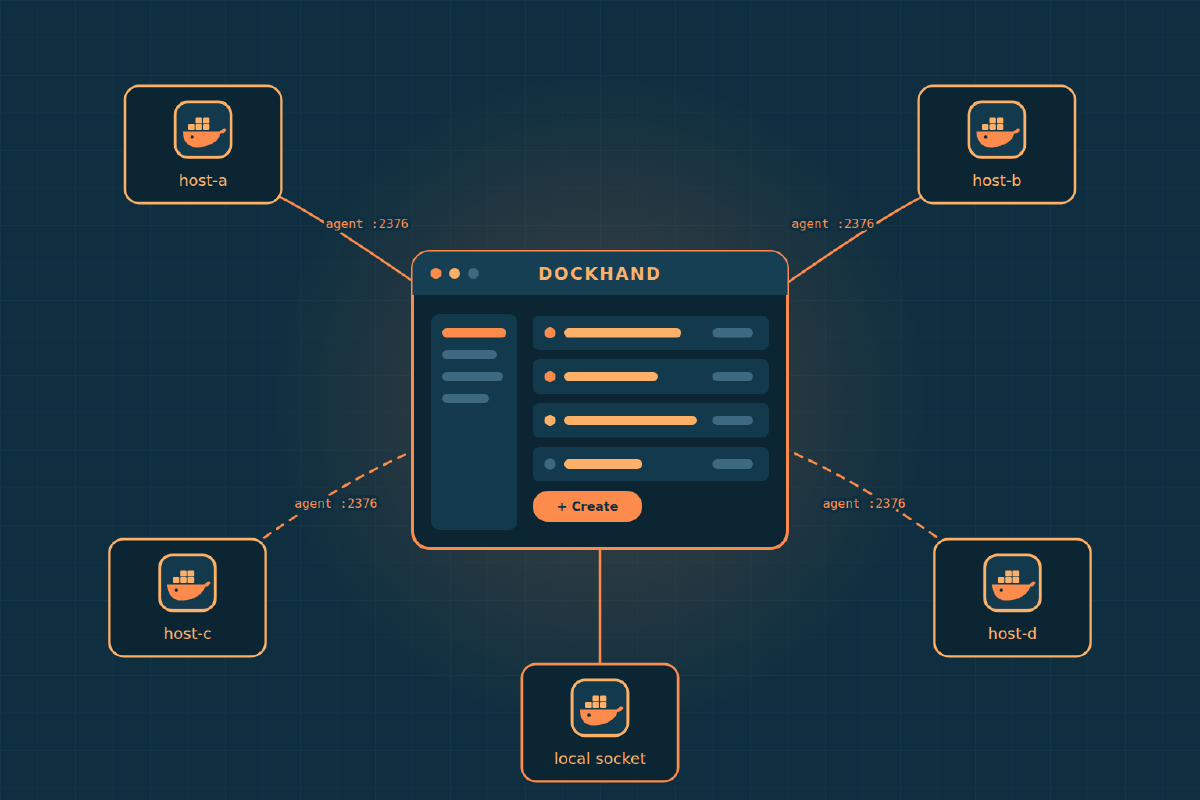
There is one server and any number of agents:
                 browser
                    |
                    v
      +---------------------------+
      |  Dockhand server          |   management host
      |  /var/run/docker.sock ----+--> local Docker daemon
      +---------------------------+
                    |
                    |  HTTPS + token (port 2376)
                    v
      +---------------------------+
      |  Hawser agent             |   second host, different segment
      |  /var/run/docker.sock ----+--> remote Docker daemon
      +---------------------------+
...one agent per extra host- Local host: Dockhand talks to the Docker socket directly. No agent is involved.
- Every other host: a Hawser agent runs next to that host’s Docker daemon, mounts its socket, and exposes an authenticated API on port 2376. Dockhand connects to the agent, and the agent passes the calls to its local daemon.
Each host’s Docker API stays on a Unix socket on that host. Nothing in this setup opens the raw Docker TCP port (2375/2376 on dockerd itself) to the network. The only thing exposed over the network is the agent, and it requires a token.
Hawser has two modes. In Standard mode the agent listens and Dockhand connects to it. In Edge mode the agent dials out to Dockhand over a WebSocket, which suits hosts behind NAT. This post uses Standard mode, because both hosts are on the same routed network.
Step 2: Run the Dockhand server on the management host#
On the management host:
docker run -d \
  --name dockhand-mgmt \
  --restart unless-stopped \
  --user 0:0 \
  -p 3000:3000 \
  -v /var/run/docker.sock:/var/run/docker.sock \
  -v dockhand_data:/app/data \
  fnsys/dockhand:v1.0.56
What each part does:
-v /var/run/docker.sock:/var/run/docker.sockis what lets Dockhand manage the local Docker daemon. Without this mount, Dockhand has no local environment at all.-v dockhand_data:/app/datais a named volume for Dockhand’s database: environments, users, settings and stack files. Back it up, or you will have to register everything again.--user 0:0runs the container as root, so it can read and write the socket without matching the host’sdockergroup ID.- The image is pinned to
v1.0.56. Pin a version rather than usinglatest, so an upgrade only happens when you choose it.
Check that it started:
docker ps --filter name=dockhand-mgmt
docker logs --tail 20 dockhand-mgmt
Open http://<management-host>:3000. Authentication is disabled on first launch. Before you do anything else, go to Settings > Authentication, enable it and create the admin user. Until you do, anyone who can reach port 3000 controls the Docker daemon on this host.
The local environment is already listed. You can browse containers, images, volumes and networks on the management host straight away.
Step 3: Run the agent on the second host#
On the second host, first generate a token. This is the only credential between Dockhand and the agent, so make it long and random:
openssl rand -hex 32Then start the agent:
docker run -d \
  --name hawser-agent-lab \
  --restart unless-stopped \
  -p 2376:2376 \
  -e TOKEN=REPLACE_WITH_AGENT_TOKEN \
  -e LOG_LEVEL=info \
  -v /var/run/docker.sock:/var/run/docker.sock \
  ghcr.io/finsys/hawser:0.2.52
REPLACE_WITH_AGENT_TOKEN is a placeholder. Replace it with the output of openssl rand -hex 32 before you run the command. Do not copy the placeholder literally, and do not reuse a token from a blog post, this one included.
The socket mount does the same job here as on the server: it gives the agent full control of this host’s Docker daemon. Port 2376 is the agent’s listener, not dockerd’s.
Check the agent:
docker ps --filter name=hawser-agent-lab
docker logs --tail 20 hawser-agent-lab
One template, stamped per environment#
With more than two hosts, keep one compose file and change only the environment name and token per host. That way you do not end up with one repo per host. A single template:
# docker-compose.yml, identical on every agent host
services:
  hawser:
    image: ghcr.io/finsys/hawser:0.2.52
    container_name: hawser-agent-${AGENT_ENV}
    restart: unless-stopped
    ports:
      - "2376:2376"
    environment:
      - TOKEN=${HAWSER_TOKEN}
      - LOG_LEVEL=${LOG_LEVEL:-info}
    volumes:
      - /var/run/docker.sock:/var/run/docker.sock
Then give each host its own .env next to the file:
# .env on the second host. Keep it out of git
AGENT_ENV=lab
HAWSER_TOKEN=REPLACE_WITH_AGENT_TOKEN
chmod 600 .env
docker compose up -dUpgrading every agent then means changing one image tag in one file.
Step 4: Add TLS, then register the agent in Dockhand#
The agent speaks plain HTTP unless you give it a certificate. The token travels in every request, so put TLS in front of it. There are two ways to do that.
Option A: TLS on the agent itself. Reuse the server certificate and key from post #2, or issue new ones for this host. Mount them and point the agent at them:
docker rm -f hawser-agent-lab

docker run -d \
  --name hawser-agent-lab \
  --restart unless-stopped \
  -p 2376:2376 \
  -e TOKEN=REPLACE_WITH_AGENT_TOKEN \
  -e LOG_LEVEL=info \
  -e TLS_CERT=/certs/server-cert.pem \
  -e TLS_KEY=/certs/server-key.pem \
  -v /etc/docker/certs:/certs:ro \
  -v /var/run/docker.sock:/var/run/docker.sock \
  ghcr.io/finsys/hawser:0.2.52
The agent now serves HTTPS on port 2376.
Option B: TLS at the reverse proxy. If the second host already sits behind a reverse proxy, publish the agent under a hostname such as docker-agent.example.com and let the proxy terminate TLS. The proxy forwards to the agent on port 2376. Do not publish 2376 to the LAN in this case. Keep the agent on a Docker network that only the proxy can reach. This is how we run it.
Next, in Dockhand:
- Go to Settings > Environments and add a new environment.
- Pick the connection type Hawser Standard.
- Give it a name, for example
lab. - Host: the agent’s address. That is either the second host’s IP (for example
192.0.2.20) on port 2376 for Option A, or the reverse-proxy hostname (docker-agent.example.com) on port 443 for Option B. - Set the protocol to HTTPS.
- Paste the token, which is the same value you passed as
TOKENon the agent. - If the certificate comes from your own CA, as in post #2, paste
ca.peminto the CA certificate field. Skip TLS verification exists for testing, but leave it off once things work. - Save.
The new environment appears in the environment selector, next to the local one. If Dockhand reports Unauthorized, the token on the agent and the token in Dockhand do not match. If it cannot connect at all, check from the management host that the port is reachable:
# Option A
openssl s_client -connect 192.0.2.20:2376 -brief </dev/null

# Option B
openssl s_client -connect docker-agent.example.com:443 -brief </dev/null
A successful handshake prints the protocol and cipher. A timeout means a firewall or routing problem, not a Dockhand problem.
Step 5: Create a container from the GUI and confirm it on the remote host#
Switch the environment selector to lab, then:
- Open Containers and click Create container.
- Image:
nginx:alpine - Name:
hello-from-dockhand - Port mappings: host
8080to container80. - Restart policy:
unless-stopped. - Create.
Dockhand sends the request to the agent, and the agent creates the container through the second host’s own socket. The image is pulled on the second host, not on the management host.
Now SSH into the second host and confirm it:
docker ps --filter name=hello-from-dockhandCONTAINER ID IMAGE COMMAND CREATED STATUS PORTS NAMES
3f9c2a1b7d4e nginx:alpine "/docker-entrypoint.…" 20 seconds ago Up 19 seconds 0.0.0.0:8080->80/tcp, [::]:8080->80/tcp hello-from-dockhandcurl -sI http://localhost:8080 | head -n 1HTTP/1.1 200 OKThe container exists on the remote host, and you never ran docker there to create it. Clean it up from the GUI, or on the host:
docker rm -f hello-from-dockhandStep 6: How the socket and the token work, and what that means for security#
The mechanism is simple:
- Socket.
/var/run/docker.sockis the Docker Engine API. Any process that can write to it can do anythingdockercan do, as root, on that host. Both Dockhand and the agent are, in effect, a remote control for that socket. - Token. On remote hosts, the agent accepts API calls only when they carry the shared token. Dockhand stores it and attaches it to every request. There is no mutual TLS, no per-user identity on the agent, and no second factor. The token is the only credential on the wire.
Three consequences follow from that:
- The socket mount is root-equivalent on that host. Anyone who controls the container that holds it can start a privileged container that mounts
/from the host, and from there own the host. Treat the Dockhand server and every agent as you would treat SSH root access to those hosts. - Whoever holds the token owns the host. Generate it with
openssl rand, keep it in a.envwith mode600or in a secrets manager, never commit it, and use a different token per agent so you can revoke one host without touching the others. Always run the token over TLS. On plain HTTP, anyone on the path can read it. - Restrict who can reach the agent. Port 2376, or the proxy hostname, should be reachable from the Dockhand server and nothing else. Use a host firewall rule, a proxy IP allowlist, or both. For example, with
ufwon the second host, where192.0.2.10is the management host:
sudo ufw allow from 192.0.2.10 to any port 2376 proto tcp
sudo ufw deny 2376/tcp
Be aware that Docker writes its own iptables rules for published ports, and those rules bypass ufw. If you publish 2376 with -p, enforce the restriction in the DOCKER-USER chain or on an upstream firewall. Alternatively, bind the port to a single interface with -p 192.0.2.20:2376:2376. Option B avoids the problem entirely, because 2376 is never published.
The same applies to the Dockhand UI itself. Turn authentication on (Step 2), and do not expose port 3000 beyond the networks you administer from.
We also run Portainer agents on some hosts. That is not a contradiction. This post covers the Dockhand workflow: one pane of glass, a small agent per host, and a single token per host. Adding the next host takes one docker compose up -d and a form in Settings > Environments.